
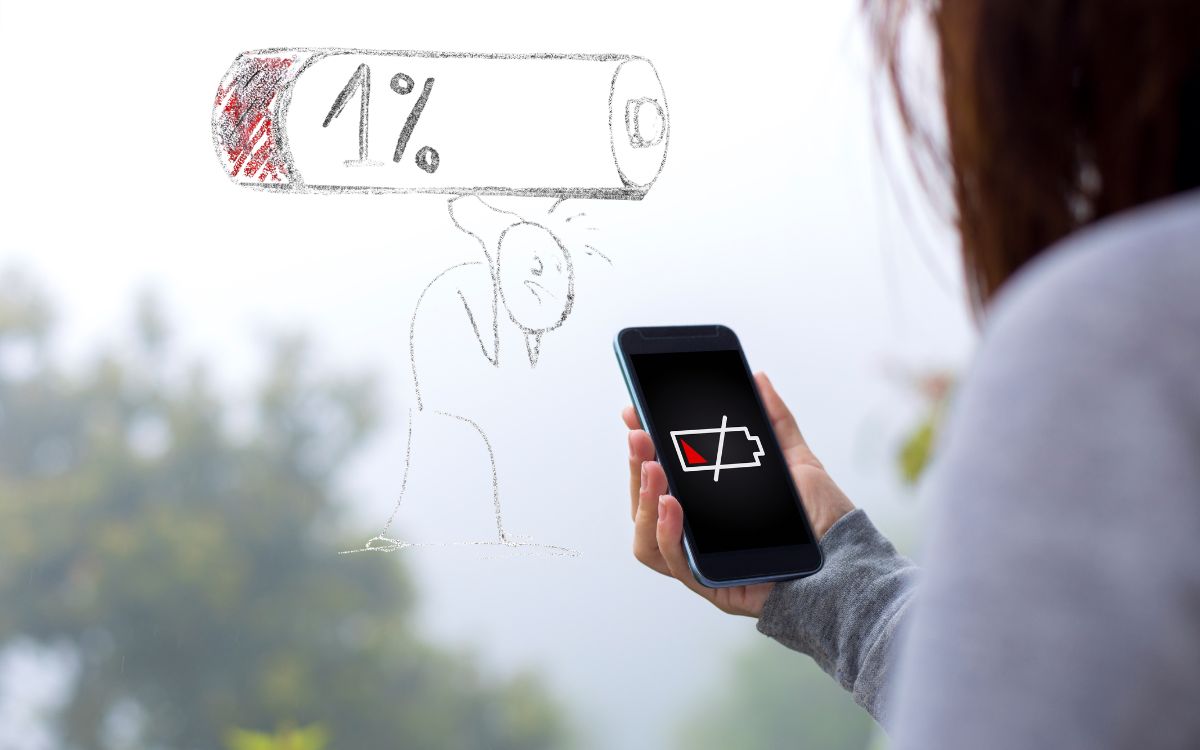
Let’s be honest, you’re probably reading this on a phone that’s hovering somewhere between 15% and a slow, anxiety-inducing death. We’ve all been there. That frantic search for how to fix battery drain is a modern-day rite of passage. It usually starts with a quiet, confused whisper to yourself: “Wait, I just charged this thing.” Then it escalates. You find yourself glaring at your device as if you can shame its power cell into submission. Why is my battery draining so fast?
It feels personal, doesn’t it? Like your phone has a vendetta against you.
Well, I’m here to tell you it’s not you, it’s… well, it’s probably a bunch of tiny, fixable things. We’re going to dive deep, beyond the basic “turn down your brightness” advice you’ve seen a thousand times. We’re going to play detective, uncover the real culprits, and get you back to a life where you’re not chained to an outlet. This is the complete, no-BS guide to understanding why your phone battery drains fast and exactly what to do about it.
The Heart of the Matter: It’s Not a Battery Problem, It’s a Power Management Problem 🤔
Think of your phone’s battery as a bucket of water. A brand-new phone comes with a big, full bucket. Over time, the bucket might get a little smaller—that’s normal battery wear. But the real issue isn’t the bucket’s size; it’s the dozen of tiny holes you’ve accidentally poked in the bottom.
Some holes are a steady drip. Others are a full-on geyser.
Your mission, should you choose to accept it, is to find those geysers and plug the most wasteful drips. The goal isn’t to have a perfectly sealed bucket—that would mean your phone is off and useless. The goal is to ensure the water is being used for things you actually care about, not wasted on tasks running silently in the shadows.
So, let’s grab our detective hats and start investigating.
The Usual Suspects: The Obvious (and Not-So-Obvious) Battery Killers
Alright, before we get into the step-by-step forensic analysis, let’s meet the usual gang of culprits. These are the features and functions that, while incredibly useful, are often the biggest leeches on your precious power.
1. The Screen: The Glaringly Obvious Power Hog 💡
This one’s no secret, but the degree to which it impacts your battery might shock you. The screen is, by a massive margin, the single biggest consumer of power on any smartphone. It’s like having a giant, high-definition digital billboard running in your pocket 24/7.
-
Auto-Brightness is Your Frenemy, Not Your Friend. Sure, it’s convenient. But letting your phone crank the brightness to 100% under the sun is like pouring your battery life directly onto the pavement. Do you really need it that bright indoors? I didn’t think so. Train yourself to keep it as low as comfortably possible. It’s the single easiest win.
-
Screen Timeout: Is your screen staying on for a full minute or two after you stop using it? That’s an eternity in battery time. Crank that setting down to 30 seconds, or even 15 if you’re a speed-reader. Every little bit helps.
-
Refresh Rate: If you have a fancy new phone with a “90Hz” or “120Hz” smooth display, this is a major drain. That buttery-smooth scrolling comes at a cost. If your phone battery is losing charge quickly, see if your settings allow you to switch it back to a standard 60Hz. The difference is noticeable, but so is the extra hour or two of battery life.
2. The Signal Hunt: Your Phone’s Exhausting Marathon 📶
This is a geyser-level drain that most people don’t think about. When your phone has a weak cellular or Wi-Fi signal, it doesn’t just give up. Oh no. It starts screaming into the void.
It pumps more and more power into its antenna, desperately trying to lock onto a stronger signal. It’s like trying to have a conversation in a noisy room—you end up shouting, and it’s utterly draining. If you work in a concrete building, live in a rural area, or are constantly on the move, this is likely a primary reason your mobile phone battery is draining quickly.
-
The Solution? In low-signal areas, if you don’t absolutely need to be reachable, try switching to Airplane Mode. You can often turn Wi-Fi back on while in Airplane Mode if you have a good Wi-Fi connection. It’s a radical move, but it stops the shouting match and saves a ton of power.
3. The Background Circus: Apps Behaving Badly 🎪
This is where the real detective work begins. You might close an app, but that doesn’t mean it’s gone. Many apps loiter in the background, updating, syncing, checking for notifications, and generally making a nuisance of themselves.
It’s like you told a party guest to leave, but they decided to stay in your kitchen, rummaging through your fridge and running the dishwasher every ten minutes.
The biggest offenders are social media apps (looking at you, Facebook, Instagram, and TikTok), email clients set to “push,” and any app that heavily relies on location services.
Your Step-by-Step Forensic Audit: How to Fix Battery Drain for GOOD
Enough theory. Let’s get our hands dirty. Grab your phone and follow along. This is the exact process I use whenever I feel my own device starting to falter.
Step 1: Interrogate the Built-In Battery Detective 🕵️
Both Android and iOS have fantastic, built-in tools that tell you exactly what’s been using your power. This is your primary crime scene.
-
On Android: Go to Settings > Battery. You’ll see a beautiful, detailed breakdown. Tap on Battery Usage (or something similar). You’ll get a list of apps and system functions, complete with the percentage of battery they’ve consumed since your last full charge. This is gold.
-
On iPhone: Head to Settings > Battery. Here, you’ll see activity graphs and a list of apps showing both “Active” and “Background” usage. Pay very close attention to the apps with high Background Activity.
What to look for: An app that you haven’t actively used much, but has a shocking amount of background usage. That’s your prime suspect.
Step 2: The Great App Purge (and Restriction)
Now that you’ve identified the troublemakers, it’s time to lay down the law.
-
The “Restrict Background Activity” Hammer: For any app that doesn’t need to be constantly updated in the background (do you really need your Facebook feed refreshing every minute?), find its “Background Data” or “Background App Refresh” setting and restrict it. On Android, you can often set the app to “Restricted” battery mode. On iOS, you can toggle off “Background App Refresh” for that specific app. This forces the app to only work when you have it open. It’s a game-changer.
-
Location, Location, Location: This is a huge one. Go to your location services settings. For most apps, ask yourself: “Does this app really need to know my location all the time?” For weather apps, mapping apps, or food delivery, “While Using the App” is almost always sufficient. For a game or a podcast app? It probably doesn’t need your location at all. Change those permissions to “Never” or “Ask Next Time.” You’ll be amazed.
Step 3: Tackle the Connectivity Vampires
Bluetooth, Wi-Fi, and GPS are incredibly convenient. They’re also constantly searching, pinging, and consuming power.
-
Bluetooth: If you’re not connected to a watch, headphones, or your car, turn it off. The modern Bluetooth Low Energy doesn’t use much, but “not much” adds up over 24 hours.
-
Wi-Fi & Mobile Data: This is a tricky one. In areas with a poor cellular signal, being on Wi-Fi is a massive battery saver. But if you’re out and about, and your phone is constantly scanning for known Wi-Fi networks, it can be a drain. You can usually turn off “Wi-Fi Scanning” in your advanced settings to prevent this.
-
GPS: You don’t need to turn it off completely, but by managing app-specific location permissions (as we did above), you’ve already tamed this beast.
The Dreaded Android Update: Friend or Foe? 🤖
So, you installed the latest Android update and now it feels like your battery is draining overnight. Sound familiar? You’re not crazy. This is a common, and incredibly frustrating, phenomenon.
Why Does This Happen?
An operating system update is a massive change. Think of it like moving into a new house.
-
Post-Update Housekeeping: After an update, your phone is working hard in the background. It’s re-optimizing all your apps for the new OS, re-indexing your files and photos for search, and recompiling code. This intense background activity can last for a day or two, and it chews through battery.
-
Bugs Happen: Sometimes, a new update just has a bug. A process gets stuck in a loop, or a new feature is poorly optimized. This is why you sometimes see a flurry of minor “bug-fix” updates after a major OS release.
What to Do If an Update Kills Your Battery
-
Be Patient: Give it 48-72 hours. Let the phone finish its behind-the-scenes work. Often, the problem will resolve itself.
-
The Nuclear Option: A Factory Reset. If the battery drain persists after a few days, a factory reset is often the most effective solution. It’s a pain, I know. You have to back everything up and reinstall your apps. But it gives the new operating system a clean slate to work with, free of any corrupted files or settings from the previous version. It’s the digital equivalent of moving into a brand-new, custom-built house instead of a renovated one.
The Overnight Mystery: Why Your Android Phone Battery Drains Overnight 🌙
You go to bed with 80%. You wake up with 40%. It’s infuriating. Where did it all go? Your phone was just… sitting there.
This is almost exclusively a background process problem. Here’s your overnight survival checklist:
-
Enable Airplane Mode: This is the ultimate power move. It cuts off the cellular radio, which is often the biggest drain. If you need your phone on for alarms, don’t worry—Airplane Mode doesn’t stop the clock.
-
Turn on “Do Not Disturb”: This stops the screen from lighting up with every notification, saving little bits of power each time.
-
Plug it In? Controversial, I know. But if you have a modern phone with smart charging (that learns your routine and stops at 80% until you need it), leaving it plugged in overnight isn’t the battery-killer it used to be. It ensures you wake up to 100% without the overnight drain.
Pro-Level Moves: Beyond the Basics
You’ve done the standard stuff. But if your battery still easily gets drained, it’s time to break out the advanced toolkit.
-
Dark Mode Everything: If you have an OLED screen (most modern phones do), Dark Mode is a genuine battery saver. On OLED screens, black pixels are turned off completely. So, using dark themes and a black wallpaper literally means parts of your screen aren’t using any power at all.
-
Ditch Live Wallpapers and Widgets: They look cool. They are also constantly running and updating. A static image is far kinder to your battery.
-
Check for Rogue Email Accounts: An email account set to “Push” is constantly talking to the server. If you have multiple accounts, consider setting them to “Fetch” every 30 minutes or hour. You don’t need to know about that new newsletter the very second it arrives.
-
The “Lite” App Universe: For major social media apps, see if there’s a “Lite” version available (Facebook Lite, Messenger Lite, etc.). These are stripped-down versions that use less data, less storage, and—you guessed it—far less battery.
When It’s Not the Software: The Hardware Reality Check
Sometimes, the problem is physical. If your phone is more than two or three years old, the battery itself might be worn out. Lithium-ion batteries degrade with every charge cycle. It’s a sad, unavoidable fact of life.
Signs of a dying battery:
-
The phone shuts down unexpectedly at 20% or 30%.
-
It bulges or feels hot to the touch during normal use.
-
The battery life has been steadily, and noticeably, getting worse for months.
If you suspect a hardware issue, take it to a reputable repair shop. A battery replacement is often surprisingly affordable and can breathe new life into an otherwise perfect device.
Your Quick-Action Cheat Sheet 🚨
Feeling overwhelmed? Let’s simplify. Here is a table you can use as a quick-reference guide. Tackle these in order, from the easiest to the most impactful.
| Priority | Action Item | What It Does & Why It Works | Emotion Level 😅 |
|---|---|---|---|
| ⚡ Quick Fix | Reduce Screen Brightness & Timeout | Plugs the biggest, most obvious power leak. Instant gratification. | 😊 Simple Joy |
| 🔍 Detective Work | Check Battery Usage Stats | Identifies the hidden background apps that are secretly stealing your juice. | 🕵️♂️ Feeling Smart |
| 🎯 Surgical Strike | Restrict Background Data & Location | Takes direct action against the specific apps you identified. Highly effective. | 💪 Powerful |
| 🌙 Overnight Savior | Enable Airplane Mode at Night | Stops the signal hunt, the biggest drain when you’re not using the phone. | 😴 Peaceful Sleep |
| 🛠️ Nuclear Option | Factory Reset (Post-Update) | A clean slate fixes software gremlins and corrupted files causing chaos. | 🔥 Determined Resolve |
Wrapping It Up: You Are in Control
The journey of how to fix battery drain is deeply personal. It’s about understanding the relationship between you and your device. It’s about taking control back from the background processes and the default settings.
You don’t have to live in fear of a dying battery. You don’t have to accept that your phone battery drains fast as an unchangeable fact. With a little bit of patience and this forensic approach, you can identify the culprits, make the changes, and finally break free from the outlet.
The ultimate goal of this whole guide on how to fix battery drain isn’t just to get more hours—it’s to get back your peace of mind. Now go forth, and may your battery percentage be ever in your favor